Want a cute animated character walking, jumping, or reacting on your Android screen? In 2026, adding a screen buddy (also called a screen pet or floating assistant) to any Android phone is easier than ever. Whether you want fun aesthetics, an anime-style companion, or a mini productivity assistant, this complete step-by-step guide will show you exactly how to do it.
This method works on Samsung, Xiaomi, OnePlus, Oppo, Vivo, Google Pixel, and any Android device running Android 8.0 or later.
What Is a Screen Buddy on Android?
A screen buddy is a small animated character that appears on top of your apps using Android’s overlay system. It can:
- Walk or jump around your screen
- React when you tap it
- Float above other apps
- Show simple notifications
- Act as a lightweight assistant
These apps use the “Display over other apps” permission to function.
Method 1: Use Pixel Shimeji (Most Popular in 2026)
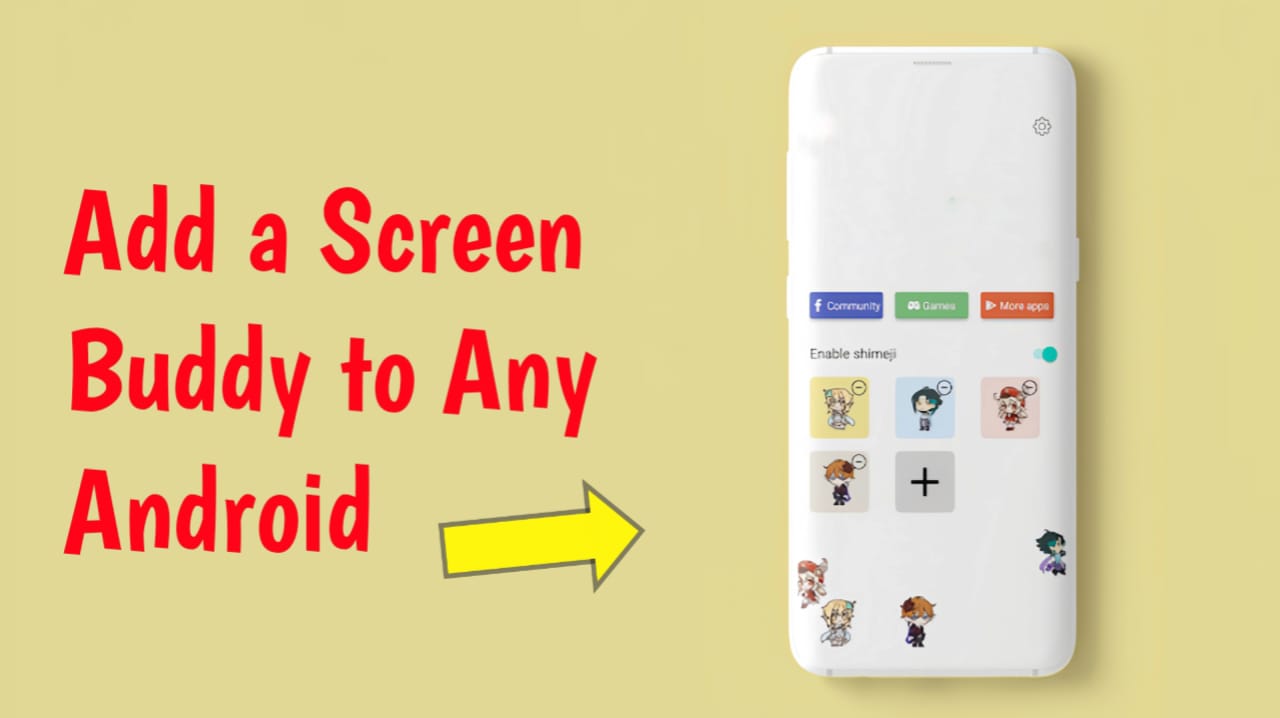
One of the easiest and most popular apps is Pixel Shimeji, inspired by classic desktop Shimeji companions.
Step 1: Install the App
- Open the Google Play Store
- Search for Pixel Shimeji
- Tap Install
Always choose the version with high ratings and recent updates.
Step 2: Grant Required Permissions
After opening the app, it will ask for:
- Display over other apps (Overlay permission)
- Accessibility access (optional)
- Disable battery optimization (recommended)
To enable overlay manually:
Settings → Apps → Special App Access → Display over other apps → Enable for Pixel Shimeji
Without this permission, your screen buddy will not appear.
Step 3: Choose Your Character
Inside the app, you can:
- Select anime, pixel, or cartoon characters
- Adjust character size
- Change movement speed
- Enable multiple characters (if supported)
Tap Start, and your buddy will immediately appear on your screen.
Step 4: Customize Behavior
Most modern screen buddy apps allow you to:
- Adjust movement sensitivity
- Lock character to edges
- Hide during gaming
- Disable when keyboard opens
- Reduce animation speed for battery saving
Customize settings based on your device performance and preference.
Method 2: Use Floating Assistant Apps
If you want something more functional than just an animated pet, you can use floating assistant apps.
Some apps combine animated avatars with AI features similar to Google Assistant.
These apps may offer:
- Quick shortcuts
- Voice commands
- Smart replies
- Reminder popups
This option is ideal if you want both fun and productivity.
Method 3: Live Wallpaper + Overlay Combo (Advanced Look)
For a more immersive aesthetic:
- Install a live wallpaper app
- Install a floating overlay character app
- Match both themes (for example, anime or cyberpunk style)
This gives your Android a “desktop companion” vibe similar to classic PC setups.
How to Fix Screen Buddy Not Showing
If your character disappears, try these fixes:
Disable Battery Optimization
Go to:
Settings → Battery → Background restrictions → Allow unlimited
Some Android skins aggressively stop background apps.
Lock the App in Recent Apps
On brands like Xiaomi and Vivo:
- Open recent apps
- Long-press the app
- Tap “Lock”
This prevents the system from killing it.
Re-enable Overlay Permission
After Android updates, overlay permissions sometimes reset.
Go back to:
Settings → Special App Access → Display over other apps
Make sure it is enabled.
Check Android Version
Some advanced animation features require Android 10 or above.
Is It Safe to Add a Screen Buddy?
Yes, if you follow these guidelines:
- Download only from the Google Play Store
- Check user reviews
- Avoid apps requesting unnecessary permissions
- Keep your Android system updated
Overlay apps are generally safe when installed from trusted developers.
Best Screen Buddy Features to Look for in 2026
- Low battery consumption
- Smooth animation engine
- AI interaction support
- Gesture response
- Auto-hide during games
- Custom character imports
- Minimal ads
Pros and Cons of Using a Screen Buddy
Pros
- Adds personality to your phone
- Fun and interactive
- Great for anime and customization fans
- Can offer quick productivity shortcuts
Cons
- Slight battery usage
- May overlap UI elements
- Not ideal for minimal or professional setups
Frequently Asked Questions (FAQ)
Does this work on Samsung One UI?
Yes. Works smoothly on Samsung devices running recent One UI versions.
Will it slow down my phone?
On modern devices with 6GB RAM or more, performance impact is minimal.
Can I use multiple screen buddies?
Yes. Most advanced apps support multiple characters at once.
Do I need to root my device?
No. Root access is not required.
Final Thoughts
Adding a screen buddy to your Android in 2026 is one of the easiest ways to personalize your device. Whether you choose a fun anime-style character or a floating AI assistant, Android’s overlay system makes the setup simple and safe.